Maximize VS Code Productivity: Shortcuts, Extensions, and Settings
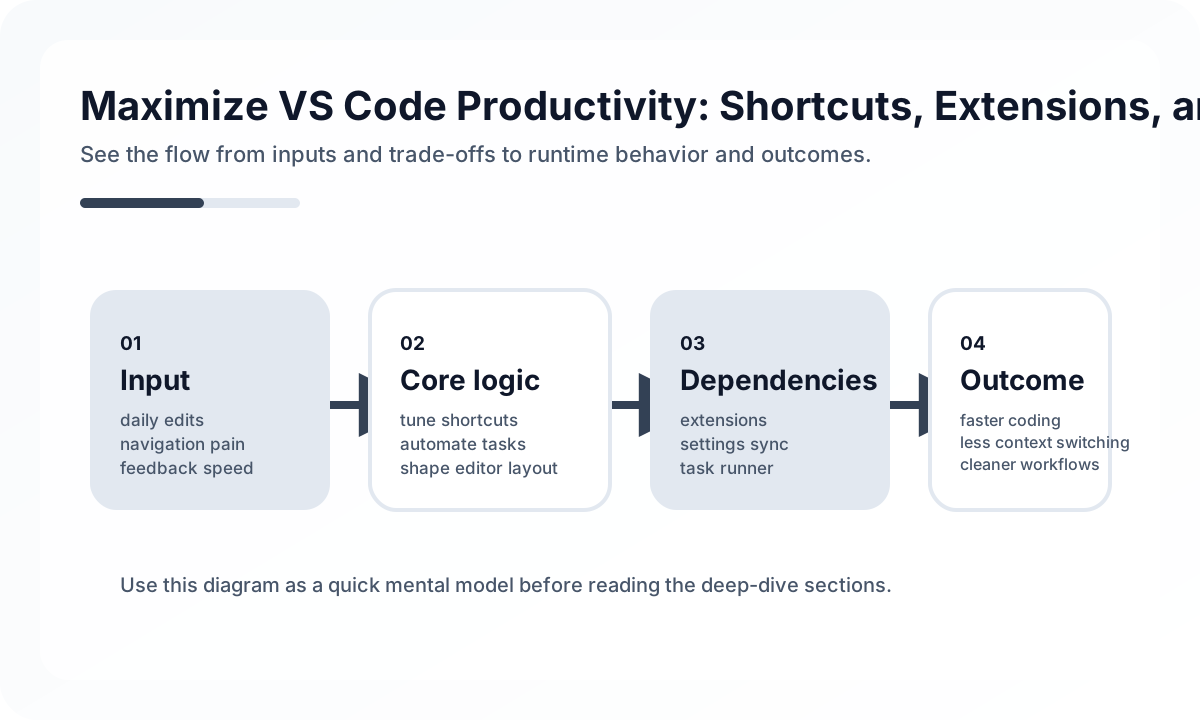
That is why the most important VS Code decision is not “Which extension should I install?” It is “What should already work when a teammate opens this repository for the first time?”
Personal Productivity and Team Productivity Are Different Problems
An individual can optimize VS Code through custom shortcuts and private settings. A team needs something different:
- shared workspace settings
- recommended extensions
- standard task definitions
- reproducible debug configurations
- minimal onboarding friction
If a repository depends too much on personal editor knowledge, the editor becomes another undocumented system.
Workspace Defaults Create the Biggest Leverage
The highest-return VS Code improvements are usually committed to the repository:
- formatting on save
- standard line endings and whitespace behavior
- lint and fix actions
- language-specific settings
- workspace recommendations
Example:
{
  "editor.formatOnSave": true,
  "editor.codeActionsOnSave": {
    "source.fixAll.eslint": "explicit"
  }
}
This matters because every saved file becomes more predictable without asking each person to remember editor rituals.
Tasks and Debug Profiles Should Reflect Real Workflows
If the team repeatedly runs the same commands, VS Code should encode them.
Useful repository-level workflows include:
- starting the main development server
- running targeted tests
- launching app plus debugger together
- validating typecheck or lint before a PR
The practical rule is simple: if a README command gets run many times per week, consider turning it into a task or launch profile.
Extension Count Is a Bad Productivity Metric
More extensions do not automatically mean more leverage. A large extension set often creates:
- duplicate responsibilities
- slower startup or indexing
- unclear ownership over formatting behavior
- onboarding confusion
A stronger standard is to keep only extensions that solve recurring project problems and that the team can justify. Everything else should be optional or removed.
Search, Refactor, and Navigation Matter More Than Cosmetic Tweaks
Many engineers underestimate how much time is lost in navigation. Practical VS Code gains often come from:
- symbol search and file search discipline
- reliable rename and refactor support
- workspace-wide search filters
- language-server stability
The editor becomes powerful when developers move through a large codebase with confidence rather than context-switching into guesswork.
Remote and Container Workflows Need First-Class Support
In some projects, the local machine is not the real development environment. When containers, WSL, or remote hosts matter, VS Code setup should make that explicit.
Teams should ask:
- is the primary environment local or remote
- are terminal paths and debug assumptions consistent
- do tasks work the same way in the actual target environment
Productivity falls fast when the editor looks standardized but the real execution environment is not.
Common Failure Modes
- relying only on personal settings instead of committed workspace settings
- keeping README commands but never turning them into editor tasks
- adding extensions continuously without review
- using different formatters or code actions across the team
- documenting debug flows that still require manual trial and error
The best editor setup is the one that makes common work feel boringly repeatable.
Team Checklist
- Does the repository define the default save, lint, and format behavior?
- Are common developer commands available as tasks or launch configs?
- Is the extension list small enough to justify and maintain?
- Can a new teammate run and debug the project without tribal knowledge?
- Does the editor setup match the actual execution environment?
Closing Judgment
VS Code productivity is not extension shopping. It is workflow design. The best setup reduces repeated decisions and makes the default path obvious. Once save, run, search, debug, and review all fit together naturally, the editor stops being a personal preference surface and starts becoming team infrastructure.
Continue Reading
Related posts
Practical Engineering Notebook Habits
Development that depends only on memory creates repeat cost. This guide explains how engineers and teams can use notebooks as workflow tools.
🔧 ToolsEssential IntelliJ IDEA Shortcuts and Productivity Tips
A practical guide to IntelliJ IDEA productivity through navigation, safe refactoring, debugging flow, and team-level IDE habits rather than shortcut memorization alone.
📚 IT StoriesWhy Developers Fell in Love with the CLI
Even in an age of polished GUIs, developers keep returning to the terminal. This story explains why the CLI became a cultural center of engineering.
🚀 DevOpsKubernetes Advanced Operations — HPA, Resource Management, and Pod Scheduling
This article explains Kubernetes operations not as a collection of settings but from the perspective of resource placement and resilience. It covers when and how to use requests/limits, HPA, affinity, taints, PDBs, and probes in real environments.
Next Path