Optimizing Core Web Vitals: A Practical Guide to LCP, CLS, and INP
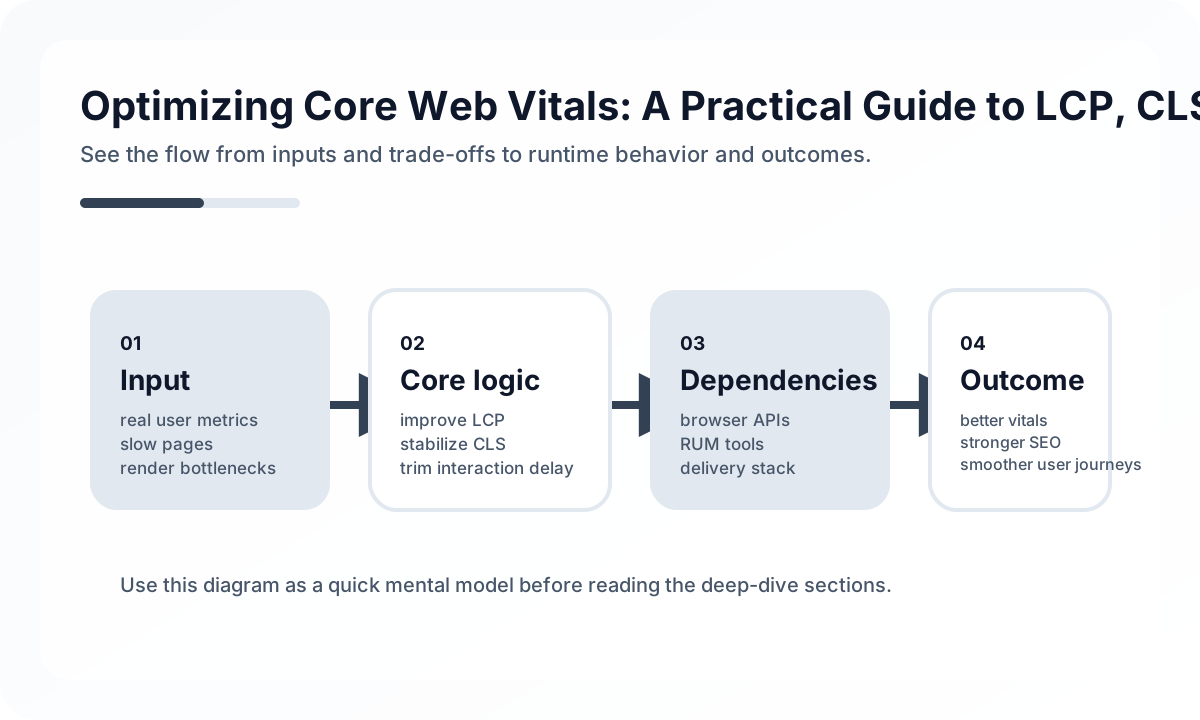
- how late the main content becomes visible
- how much the layout shifts unexpectedly
- how slowly clicks and inputs feel after interaction
That is why working well with Core Web Vitals is less about polishing Lighthouse scores and more about optimizing rendering structure and user experience together.
Understand the metrics functionally first
| Metric | Meaning | Good | Needs Improvement | Poor |
|---|---|---|---|---|
| LCP | How quickly the main content appears | <= 2.5s | <= 4.0s | > 4.0s |
| CLS | How much the layout shifts unexpectedly | <= 0.1 | <= 0.25 | > 0.25 |
| INP | How long it takes for the next visual response after interaction | <= 200ms | <= 500ms | > 500ms |
It is useful to analyze these separately, but they are often connected. Heavy client-side JavaScript can hurt LCP and also hurt INP through hydration and main-thread load.
Optimizing without measuring usually wastes effort
Core Web Vitals optimization hits a limit when approached only as an image-compression checklist. You need to find the actual bottleneck first.
import { onCLS, onINP, onLCP } from 'web-vitals'

function sendToAnalytics(metric: {
  name: string
  value: number
  id: string
}) {
  gtag('event', metric.name, {
    event_category: 'Web Vitals',
    value: Math.round(metric.name === 'CLS' ? metric.value * 1000 : metric.value),
    event_label: metric.id,
    non_interaction: true,
  })
}

onCLS(sendToAnalytics)
onINP(sendToAnalytics)
onLCP(sendToAnalytics)
Measurement tools each have different roles.
- Chrome DevTools: local reproduction and analysis of layout and main-thread work
- Lighthouse: quick lab checks
- PageSpeed Insights: comparison of field data and lab data
- Search Console: trend tracking across the site
The goal is not to stare at one score, but to compare lab data and real-user field data together.
LCP is usually a problem of the most important thing arriving too late
In practice, LCP tends to degrade for a handful of repeated reasons.
- slow TTFB
- delayed rendering of the hero image or headline
- delayed fonts or styles
- overdependence on client rendering
1. Identify the actual LCP candidate first
Do not start by compressing images blindly. First determine what the actual LCP element is. On some pages it is the hero image. On others it is a large text headline.
2. If an image is the LCP element, make its priority explicit
<link rel="preload" as="image" href="/hero.webp"
  imagesrcset="/hero-400.webp 400w, /hero-800.webp 800w, /hero-1200.webp 1200w"
  imagesizes="(max-width: 600px) 400px, (max-width: 1200px) 800px, 1200px"
/>

<img
  src="/hero-800.webp"
  srcset="/hero-400.webp 400w, /hero-800.webp 800w"
  sizes="(max-width: 600px) 400px, 800px"
  width="800"
  height="600"
  fetchpriority="high"
  alt="Hero image"
/>
Browsers do not always infer resource importance perfectly. For LCP resources, hints like preload and fetchpriority="high" often help make importance explicit.
3. Server response and fetch structure matter too
export const revalidate = 3600

async function Page() {
  const [hero, products] = await Promise.all([
    fetchHeroData(),
    fetchFeaturedProducts(),
  ])

  return <Layout hero={hero} products={products} />
}
LCP is often not solvable from the frontend alone. Slow SSR, serialized fetches, and missing caching create latency before the browser can even start painting.
4. Fonts can directly affect LCP
<link rel="preconnect" href="https://fonts.googleapis.com" />
<link rel="preconnect" href="https://fonts.gstatic.com" crossorigin />
<link href="https://fonts.googleapis.com/css2?family=Noto+Sans+KR:wght@400;700&display=swap" rel="stylesheet" />
@font-face {
font-family: 'MyFont';
src: url('/fonts/my-font.woff2') format('woff2');
font-display: optional;
unicode-range: U+AC00-D7A3;
}If text is the LCP element, font strategy matters. In many cases, showing content quickly matters more than loading the ideal web font first.
CLS is often a space-reservation problem
Sites with high CLS usually show similar causes.
- images without known dimensions
- ads or banners inserted late
- text shifts from font swaps
- dynamic content injected near the top of the page
Reserving space early matters
img {
  aspect-ratio: 16 / 9;
  width: 100%;
  height: auto;
}

.ad-container {
  min-height: 250px;
}
Anything whose size becomes known too late is a likely layout-shift candidate. The real goal in CLS work is not aesthetics. It is letting the browser calculate layout ahead of time.
Dynamic UI should not push the screen downward from the top
function BannerArea() {
  const [banner, setBanner] = useState<Banner | null>(null)

  return (
    <div style={{ minHeight: '48px' }}>
      {banner && <Banner data={banner} />}
    </div>
  )
}
In production systems, event banners, coupon notices, and A/B test banners often hurt CLS. Late insertion near the top of the page is usually the wrong pattern.
Skeletons only help if the size really matches
function ProductCard({ product }: Props) {
  return (
    <div className="card" style={{ height: 320 }}>
      <div className="relative aspect-square">
        <Image src={product.image} fill alt={product.name} />
      </div>
      <h3 style={{ minHeight: '3rem' }}>{product.name}</h3>
      <p>{product.price.toLocaleString()}원</p>
    </div>
  )
}
Skeletons are not there just to look polished. They should reserve the same layout box as the real content.
INP is usually a main-thread overload problem
Poor INP does not mean the click itself was late. It means the main thread was too busy to produce the next paint after the interaction.
Common causes include the following.
- too much JavaScript execution
- heavy state updates
- long synchronous calculations
- expensive work inside event handlers
- overload right after hydration
Long tasks should be broken up
async function processLargeDataAsync(items: Item[]) {
  const results: Result[] = []

  for (const item of items) {
    results.push(heavyTransform(item))

    if (results.length % 50 === 0) {
      await scheduler.yield()
    }
  }

  return results
}
Sometimes the better fix is moving work off the main thread
const worker = new Worker('/workers/processor.js')
worker.postMessage({ items })
worker.onmessage = (event) => setResults(event.data.results)
When the amount of computation is large, a Web Worker can be a more fundamental solution than yielding.
In React, lowering the priority of heavy updates can help
'use client'

import { useState, useTransition } from 'react'

function SearchPage() {
  const [query, setQuery] = useState('')
  const [results, setResults] = useState<Result[]>([])
  const [isPending, startTransition] = useTransition()

  function handleInput(event: React.ChangeEvent<HTMLInputElement>) {
    const nextQuery = event.target.value
    setQuery(nextQuery)

    startTransition(async () => {
      const data = await search(nextQuery)
      setResults(data)
    })
  }

  return (
    <>
      <input value={query} onChange={handleInput} />
      {isPending && <Spinner />}
      <ResultList results={results} />
    </>
  )
}
Separating input responsiveness from heavy result updates often improves perceived responsiveness significantly.
Analyze the metrics separately, but fix common causes first
Core Web Vitals are different metrics, but in many cases the underlying bottlenecks are shared.
- too much client-side JavaScript can hurt both LCP and INP
- missing layout reservation keeps causing CLS
- slow server response is often the starting point for LCP issues
- poor resource priority around fonts and images degrades initial rendering broadly
A practical optimization order often looks like this.
- identify the problem pages and metrics in real-user field data
- find the LCP candidate and layout-shift sources on those pages
- analyze long main-thread tasks and hydration pressure
- adjust resource priority, cache policy, and rendering structure together
Common misunderstandings
1. Reducing image size alone will fix LCP
Images may be the cause, but TTFB, CSS blocking, font loading, or heavy client rendering can be bigger factors.
2. CLS only matters on ad-heavy sites
In reality, banners, skeletons, web fonts, and dynamic list updates affect ordinary products all the time.
3. INP is something the framework will solve automatically
Frameworks can help, but if heavy work still runs on the main thread, INP will still be poor.
Wrap-up
The core of Core Web Vitals optimization is not memorizing a checklist. It is understanding what the browser is waiting for, what is causing layout instability, and what is delaying response after interaction.
LCP is about showing the most important thing sooner. CLS is about making layout predictable. INP is about keeping the main thread more responsive to user input. Once those are understood functionally, you can improve the user experience itself, not just the score.
What Gets Hard in Production
- Core Web Vitals are symptoms of how the whole delivery path behaves, not just browser metrics to game.
- Improving one metric can harm another if rendering, caching, and third-party scripts are not considered together.
- Teams often measure lab performance while users suffer from real network and device variance.
Architecture Decisions That Matter
- Treat LCP, INP, and CLS as product-level budgets tied to route families.
- Remove work before optimizing work: ship less JS, fewer blocking resources, and less layout instability.
- Measure both field data and controlled lab runs so you can separate systemic issues from release regressions.
Practical Example
A practical diagnosis starts by mapping each metric to likely architectural causes:
LCP -> slow image, render-blocking CSS, server latency
INP -> heavy main-thread JS, expensive handlers, hydration work
CLS -> unsized media, async UI insertion, unstable font/layout loading
Anti-Patterns to Avoid
- Optimizing Lighthouse scores while ignoring production field data.
- Shipping personalization and experimentation scripts without a CPU budget.
- Treating CLS as only a CSS issue instead of a content and loading pipeline issue.
Operational Checklist
- Track real-user vitals segmented by route and device class.
- Review third-party script cost during release planning.
- Budget image and font loading behavior explicitly.
- Keep regressions visible in CI, synthetic monitoring, and product review.
Final Judgment
Core Web Vitals matter because they expose whether the architecture respects user time. Teams that improve them sustainably usually redesign workload placement, not just tweak metrics.
Continue Reading
Related posts
Frontend Performance Architecture Guide
This guide looks at frontend performance not just as bundle optimization, but as an architectural problem involving rendering, data flow, caching, and observability.
🖥️ FrontendDesigning Partial Hydration Boundaries
Frontend performance improves when teams decide what really needs interaction first, not when they hydrate everything immediately.
📱 MobileMobile App Performance Optimization: A Practical Guide for React Native and Flutter
How to optimize performance in React Native and Flutter apps. Covers rendering optimization, image optimization, list performance, memory management, and bundle size reduction.
📱 MobileA Startup Time Budget Playbook for Mobile Apps
Startup performance does not improve by instinct alone. This guide explains how to budget cold and warm start behavior in real mobile products.
Next Path